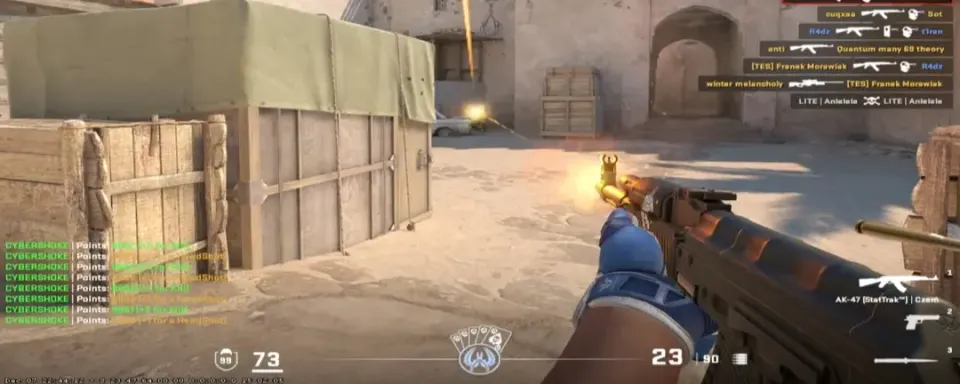
There is nothing like the click that lands exactly when you expect it. That feeling is not luck. It is consistent frame times and smart settings doing the quiet work behind your crosshair.
In Counter‑Strike 2, every millisecond from mouse to monitor matters, so this guide focuses on practical tweaks that turn stutters into smoothness and input lag into confidence.
Why FPS Consistency Wins Rounds
High average FPS is good. Consistent frame times are better. Consistency keeps your muscle memory honest in the exact moments that decide rounds.
Random dips during smokes or full executes do not only look choppy. They shift the timing you have practiced into a different rhythm.
The goal is a graph that barely wiggles during chaos, not just a high number in spawn.
Best CS2 Video Settings For Max Frames
Tackle the big hitters first. These give the fastest gains with minimal guesswork.
- Display Mode: Fullscreen. This reduces input latency by giving CS2 direct control of the display.
- V‑Sync: Disabled. Prevent the added latency. Use G‑Sync or FreeSync if available.
- Boost Player Contrast: Enabled. Enemy models separate from busy backgrounds with tiny cost.
- Anti‑Aliasing: CMAA2 on low‑end rigs. 2x or 4x MSAA on mid to high‑end for fence and railing clarity.
- Global Shadow Quality: Low or Medium. The draw distance advantage myth is gone in CS2.
- Model And Texture Detail: Low or Medium. Higher values can crater FPS near smokes.
- Shader Detail: Low. Cleaner reads in dark areas and less GPU stress during effects.
- Particle Detail: Low. Less visual clutter when nades explode.
- Texture Filtering: Bilinear or Trilinear if you need every frame.
- Ambient Occlusion: Disabled. Looks nice. Does not win fights.
- HDR: Performance. Saves frames and avoids odd artifacts.
- NVIDIA Reflex Low Latency: Enabled. Use Enabled + Boost if you are CPU‑bound.

CS2 Video Settings And Impact
Setting | Recommended Value | Why It Helps | Typical Impact |
Display Mode | Fullscreen | Lower input lag by skipping desktop compositor | Small FPS up, latency down |
V‑Sync | Disabled | Removes a major latency source | Smooth input feel |
Boost Player Contrast | Enabled | Faster target separation | Negligible cost |
Anti‑Aliasing | CMAA2 or 2x/4x MSAA | Clarity on thin geometry without big hit | Small to medium cost |
Global Shadow Quality | Low or Medium | Large FPS savings with no info loss | Large FPS up |
Model And Texture Detail | Low or Medium | Lower VRAM use and fewer smoke dips | Medium FPS up |
Shader Detail | Low | Less effect overhead, cleaner picture | Small to medium FPS up |
Particle Detail | Low | Less clutter and cheaper effects | Small to medium FPS up |
Texture Filtering | Bilinear or Trilinear | Cheapest filtering for extra frames | Small FPS up |
Ambient Occlusion | Disabled | Purely cosmetic depth effect | Small FPS up |
HDR | Performance | Slightly faster tone mapping | Small FPS up |
NVIDIA Reflex | Enabled or Enabled + Boost | Lower system latency | Latency down |
Resolution And Aspect Ratio For Visibility And Frames
This choice is about information and feel, not just raw speed.
- 16:9 Native Like 1920×1080Maximum horizontal FOV and the sharpest image. Great for lurkers and mid rotators who value peripheral info. Costs more GPU headroom and makes models look slimmer.
- 4:3 Stretched Like 1280×960Fewer pixels for a healthy FPS bump. Stretched models read wider and can feel easier to track. You sacrifice side vision, so positioning and sound awareness matter more.
- 4:3 With Black Bars Or 16:10Black bars keep geometry natural and create a tunnel‑vision focus some players prefer. 16:10 sits between 16:9 and 4:3 and can balance width with awareness.
Pick based on your role. A site anchor holding one angle may prefer the focus of 4:3. A rotator sweeping multiple lines may favor 16:9 for information density.
NVIDIA And AMD Driver Settings For Low Latency
Create a per‑game profile so global settings stay clean.

NVIDIA Control Panel For CS2
- Power Management Mode: Prefer Maximum Performance
- Low Latency Mode: On or Ultra
- Texture Filtering Quality: High Performance
- Threaded Optimization: On
- Vertical Sync: Off or Use The 3D Application Setting
AMD Adrenalin For CS2
- Radeon Anti‑Lag: Enabled
- Radeon Chill: Disabled
- Radeon Boost: Disabled
- Wait For Vertical Refresh: Always Off
- Texture Filtering Quality: Performance
- Surface Format Optimization: Enabled
GPU Driver Quick Table
Vendor | Setting | Value | Benefit |
NVIDIA | Power Management Mode | Prefer Maximum Performance | Holds high clocks |
NVIDIA | Low Latency Mode | On or Ultra | Shrinks render queue |
NVIDIA | Texture Filtering Quality | High Performance | Prioritizes FPS |
NVIDIA | Vertical Sync | Off | Avoids input delay |
AMD | Radeon Anti‑Lag | Enabled | Reduces end‑to‑end latency |
AMD | Radeon Chill | Disabled | Avoids unwanted caps |
AMD | Radeon Boost | Disabled | Avoids resolution swings |
AMD | Wait For Vertical Refresh | Always Off | Ensures no driver V‑Sync |

Steam Launch Options That Still Matter In CS2
CS2 deprecated many old flags. Keep the few that still help and test the optional ones.
- -console to have the developer console ready
- -nojoy to drop controller support and free a bit of memory
- -fullscreen to force exclusive mode
- +fps_max 0 to remove the cap, or set a cap a few frames below your refresh with VRR
- -high to prioritize the process only if your system stays stable
- -vulkan to test. Keep it only if your benchmarks improve
Skip legacy flags that do nothing in CS2.
Windows Optimizations For Stable Frame Times
These changes build a quiet environment where CS2 gets first pick of CPU and GPU.
- Power Plan: High Performance or Ultimate Performance on desktops. This prevents power‑saving dips that show up as micro‑stutters.
- Startup Apps: Disable non‑essentials in Task Manager. Updaters and sync tools can spike at the worst time.
- Game Mode: Start with On. If a stutter appears you cannot explain, test Off and compare.
- Overlays: Turn off Steam, Discord, and extra GPU overlays. Hooks in the render path can cause hitching.
- Drivers: Keep GPU drivers updated. Many releases include CS2‑specific fixes and latency improvements.
Many players skim a checklist for a quick FPS boost in CS2 before digging deeper. Use that mindset here. Lock the simple wins first, then measure and refine.
How To Diagnose CPU Or GPU Bottlenecks In CS2
Stop guessing and start reading real numbers. A five‑minute test will tell you where the frames are hiding.

What To Use
- CS2 console: cl_showfps 2 for FPS and frame time
- Windows Game Bar or Task Manager for quick CPU, GPU, and RAM checks
- MSI Afterburner with RTSS for a detailed overlay showing per‑core CPU load, GPU utilization, VRAM, temperatures, and clocks
What To Look For
- CPU BottleneckCPU sits near full across cores while GPU is far below 95 percent. Expect high average FPS with ugly spikes in crowded scenes. Lower particle effects, trim background tasks, and consider a CPU upgrade when already optimized.
- GPU BottleneckGPU sticks at 99 to 100 percent while CPU has headroom. Lower resolution, Global Shadows, Shaders, and AA for instant gains.
- RAM PressureSystem RAM usage climbs above 80 to 90 percent. Close apps, reduce texture detail, and if needed move to 16 GB as a baseline or 32 GB for heavy multitasking.
Change one setting at a time and play the same spot or the same workshop bench for a minute. Write down the numbers so your tweaks stay honest.
Ready CS2 Presets For Low Mid And High End PCs
Use these as starting points. Adjust to taste after you measure.

Tier 1 Competitive Minimum
- Resolution And Aspect: 1024×768 or 1280×960 at 4:3 stretched
- Shadows, Shaders, Particles: Low
- Model And Texture Detail: Low
- Anti‑Aliasing: CMAA2 or Off
- NVIDIA Reflex: Enabled + Boost
- Launch Options: -console -nojoy -fullscreen +fps_max 0
- Windows: High or Ultimate Performance, overlays disabled
Target: A stable 144+ FPS so pistol rounds and full executes feel identical.
Tier 2 Balanced Performer
- Resolution And Aspect: 1280×960 4:3 for more frames or 1920×1080 16:9 for awareness
- Global Shadows: Low or Medium
- Model And Texture Detail: Medium if VRAM is 6 to 8 GB
- Shaders And Particles: Low
- Anti‑Aliasing: 2x or 4x MSAA
- Reflex: Enabled or Enabled + Boost
- Launch Options: same as Tier 1
Target: A smooth 240+ FPS with crisp reads on thin geometry.
Tier 3 Uncompromised Powerhouse
- Resolution And Aspect: 1920×1080 or 2560×1440 at max refresh
- Global Shadows: Medium or High by preference
- Model And Texture Detail: High if smoke performance stays stable
- Shaders And Particles: Keep Low to minimize combat noise
- Anti‑Aliasing: 4x or 8x MSAA if frames remain above refresh
- Reflex: Enabled
Target: 300 to 360+ FPS with visual polish that does not add clutter.

Conclusion
Performance in Counter-Strike 2 is a game within the game. You can have perfect crosshair placement and crisp aim, but if your frames dip when a smoke blooms, that round is gone. The good news? Most FPS problems are fixable with a handful of smart tweaks; not expensive upgrades.
FAQs
How do I quickly increase FPS in CS2?
Start with Fullscreen mode, disable V-Sync, drop Shadows, Shaders, and Particles to Low, and enable NVIDIA Reflex or AMD Anti-Lag. These few steps alone give the fastest, most noticeable FPS gains for most systems.

Does playing stretched resolution really boost FPS?
Yes. A 4:3 stretched resolution like 1280×960 renders fewer pixels than 1080p, which directly increases frame rate. The stretched effect also makes player models appear wider, which many find easier to track.
What’s the best balance between graphics quality and performance?
For most rigs, Medium Textures with Low Shadows, Low Shaders, and 2x or 4x MSAA hits the sweet spot. You get clarity on enemies and edges without the heavy FPS cost of ultra settings.
Should I use FidelityFX Super Resolution (FSR) for a frame boost?
Only on low-end hardware. FSR raises FPS by rendering at a lower resolution, but it can blur fine details that help you spot enemies. For competitive play, it is better to stick to native resolution with optimized settings.

Is it safe to use third-party tools like Hone for performance?
Yes, Hone is a legitimate and safe utility designed to optimize game performance automatically. Hone can help tune your PC for smoother gameplay.


No comments yet! Be the first one to react