



99 Nights in the Forest isn't the most demanding Roblox game, so it runs quite smoothly on most computers and mobile devices. However, for certain reasons, performance issues such as lags, bugs, and FPS drops can occur, which can be problematic during survival.
If you're also experiencing low performance in 99 Nights in the Forest and wondering how to boost FPS and fix performance issues, here's what you can do.
Eliminating Lag and Delay in 99 Nights in the Forest
The most common issues affecting gameplay comfort are lags caused by low FPS and network delays (Ping). Here's what you can do to improve the situation, increase FPS, and reduce Ping in 99 Nights in the Forest:
Optimize In-Game Graphics Settings
- Reduce Graphics Settings: Open Roblox settings and lower the graphics settings (Graphics Quality) from high to medium or low. This will reduce the load on your device's resources and help increase FPS. You can change these settings manually or set the Graphics Mode to automatic. However, manual adjustment usually yields better results.

- Switch Full-Screen Mode: Try experimenting with the display mode — switch from windowed mode to full-screen or vice versa. Sometimes this helps improve game performance.

Network Settings Optimization
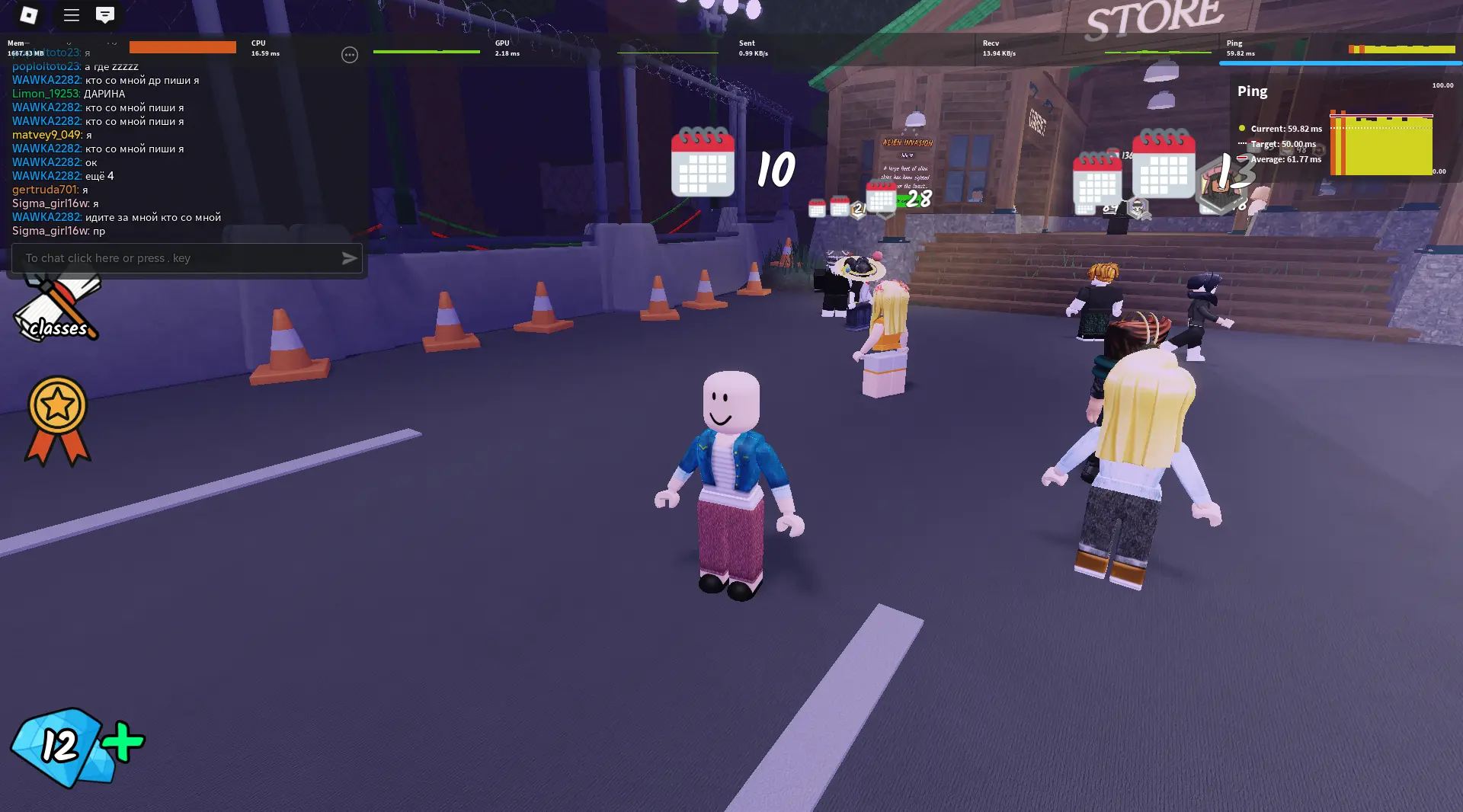
In Roblox settings, enable "Performance Stats" to monitor current network and performance metrics. Pay attention to the Ping value — if it's quite high (over 90), it indicates network issues. This can cause delays and sluggish response to actions in 99 Nights in the Forest.
Tip | Description |
Use a Wired Connection | If you're playing on a PC or laptop, try using a network cable for internet connection. |
Close Internet-Using Apps and Programs | If you're downloading, watching videos, streaming — doing anything that uses the internet and burdens it, you should turn it off. |
Restart Wi-Fi | Restarting the router and modem can help resolve network issues. |
Change Server | Check Ping in different Roblox games. Perhaps 99 Nights in the Forest is located far from you, resulting in higher delays here. |
Disable VPN | VPN creates conditions that increase delay and slow down network speed, so turn it off. |
Optimize Computer / Mobile Device
Sometimes the performance problem lies in your device's workload. Therefore, you should do everything possible to free up additional resources for the game and reduce the load on your PC, laptop, or smartphone.
➤ Close Background Programs: Turn off all apps and programs you aren't using during 99 Nights in the Forest. The most load usually comes from video recording programs, streaming software, overlays, browsers, antivirus, game launchers, etc.
➤ Use Task Manager: Monitor system load to determine which processes are creating the most load, what should be turned off if possible, and which resource (processor, RAM, disk, network) suffers the most.
➤ Check System Requirements: Although Roblox: 99 Nights in the Forest is relatively undemanding, if your device is too weak, avoiding performance issues won't be possible. In such a case, only hardware upgrades will help — replacing the graphics card, processor, adding RAM, or completely replacing the device.
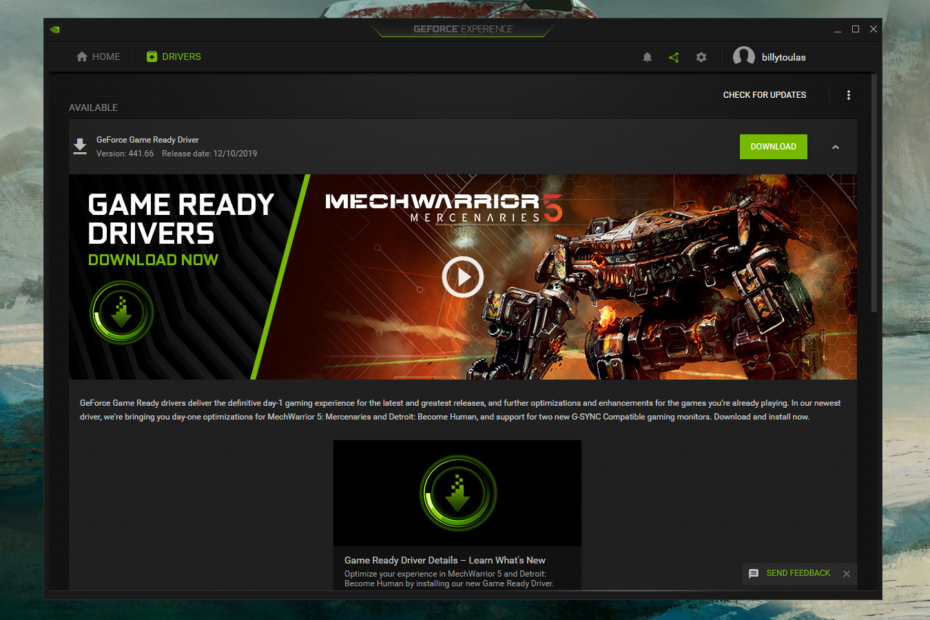
➤ Update Graphics Card / Device Drivers: If updates are available for your graphics card (Nvidia, AMD) or mobile device, be sure to install them. This can positively affect performance and compatibility with the game.

Solving Common Bugs in 99 Nights in the Forest
While playing 99 Nights in the Forest, you may encounter various bugs — technical errors within the game that can cause difficulties for the player but are not always dependent on them. In such cases, the following actions may help:
1. Restart the Game Client: Close not only the game itself but also Roblox entirely, then restart it to eliminate game bugs and glitches like missing items, visual defects, character or control issues.
2. Reinstall the Game: If some problems persist, it's worth completely uninstalling the game and reinstalling it.
3. Identify the Nature of the Error / Bug in 99 Nights in the Forest: If you encounter something unique and unusual that hinders gameplay, it's worth seeking advice from other players on the 99 Nights in the Forest forum, Reddit, or finding a relevant video on YouTube.
4. Report the Bug to Roblox / 99 Nights in the Forest Developers: Some issues can only be fixed by the developers. Write to them about the problem, describe it in detail so they can identify its source and fix it in the next update.

Staying Updated on the Latest News about 99 Nights in the Forest
To always stay updated on the latest events, updates, issues, and errors, follow the developers' activities, patch notes, and messages from creators. To do this:
- Join Official Groups and Communities of 99 Nights in the Forest to keep track of all changes and news.
- Communicate with Other 99 Nights in the Forest Players on various forums, groups, and channels related to this game. They often share useful tips, solutions to problems, or bug findings.
By following all the above tips, you can resolve or at least identify the source of your performance issues in 99 Nights in the Forest. The most important thing is to optimize your settings, as this will help increase FPS and reduce Ping.




Comments6